
Documentation version control is the practice of tracking, storing, and rolling back changes to documents over time. For active documentation projects, the recommended baseline is a docs-as-code workflow using Git with automated CI/CD. For documents that rarely change, a simple cloud app history or clear file naming convention does the job without added overhead.
TL;DR:
- Using Git for documentation provides detailed change tracking, conflict resolution, and a reliable audit trail crucial for regulatory or complex collaborative projects.
- Branching models like GitFlow or trunk-based development help maintain predictable releases, especially when multiple contributors or frequent updates are involved.
- Automating builds and reviews through CI/CD ensures documentation stays current and error-free, reducing manual rework and drift.
- Limit active versions to a core set of recent releases to minimize maintenance effort, and archive older versions as immutable snapshots.
- Clear naming conventions, review requirements, and permission control prevent confusion, ensure compliance, and foster consistent, accurate documentation management.
Table of Contents
- What Documentation Version Control Actually Means (And Why Skipping It Costs You)
- Git Branches, Folders, or Cloud History: Which Method Fits?
- Branching Models That Keep Doc Releases Predictable
- How Docusaurus, Read the Docs, Antora, and MkDocs Handle Versions
- Naming Conventions and Review Rules That Prevent Chaos
- Automating Documentation Builds With CI/CD
- Should You Version Your Docs? A 3-Question Decision Guide
- Your First-Week Documentation Version Control Checklist
- What to Do With Old Doc Versions Instead of Deleting Them
- Managing Collaborative Edits Without Losing Your Mind
- Making Review and Approval Part of the Version Control Flow
- Turning Commit History Into a Real Changelog
- Who Should Have Access to Your Documentation Repository?
- Common Pitfalls Teams Hit When Adopting Version Control
- Where to Go for Tool-Specific Setup Instructions
- Sources
- FAQ
What Documentation Version Control Actually Means (And Why Skipping It Costs You)
Documentation version control means recording every change to a document, who made it, and when, so you can trace history and revert to an earlier state if something breaks. The goal is traceability: one person’s edit shouldn’t silently overwrite another’s, and nobody should have to guess which file is the real one. A properly versioned system gives you a single source of truth, a rollback path, and a record of who approved what.
Skip it, and the damage shows up slowly. Teams call this doc drift: the gap between what a document says and what is actually true in the product, policy, or process it describes. A support article references a feature that was renamed six months ago. An admissions checklist still lists a form your facility stopped using. New hires read outdated onboarding guides because nobody archived the old one. None of these failures announce themselves. They just cost time, one confused reader at a time.
Version control isn’t always necessary. A one-page internal memo that changes twice a year doesn’t need branches and pull requests. But it becomes necessary once any of these apply:
- Multiple people edit the same document regularly.
- The document has public or regulatory visibility (compliance manuals, published API docs, patient-facing intake forms).
- You need an audit trail showing who changed what and when.
- Past versions still matter to some readers (a customer on an old product release, an auditor reviewing last year’s policy).
If none of those apply, don’t overbuild the system. Match the tooling to the actual risk.
Git Branches, Folders, or Cloud History: Which Method Fits?
Three approaches dominate documentation versioning, and all trades ease of use for control in a different way.
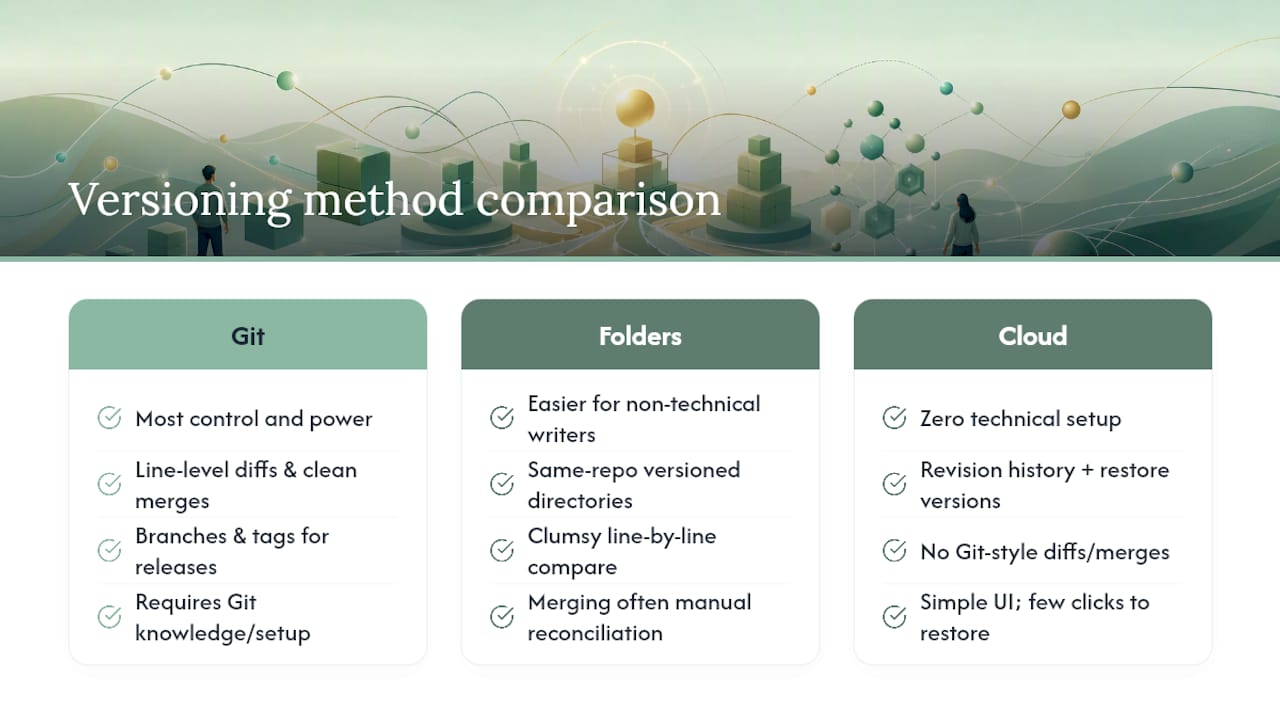
Git branches and tags give you the most power. A branch lets multiple people work on different document sets simultaneously without conflict, and a tag marks an immutable point in history, typically a release. Because Git tracks line-level changes, you get real diffs (exactly what changed, word for word) and clean merges when two people edit the same file. Antora’s documentation recommends branches specifically because they preserve these diff and merge benefits; folder-based alternatives generally do not.
Versioned directories or folders (a /v1/, /v2/ structure sitting in the same repo) are easier for non-technical writers to navigate since there’s no branching concept to learn. The tradeoff is real: comparing two folder versions line by line is clumsy, and merging simultaneous edits across folders often means manual reconciliation rather than an automatic Git merge.
Cloud app histories, like Google Docs revision history or Microsoft SharePoint and OneDrive version tracking, need zero technical setup. Microsoft’s OneDrive documentation shows how easily a nontechnical team can restore a prior file version with a few clicks.
Pick based on three factors: how technical your contributors are, how often you release, and whether you need automated builds. Frequent releases with developer contributors point to Git. Occasional edits by a small, nontechnical team point to cloud apps.
Branching Models That Keep Doc Releases Predictable
Two branching models cover most documentation workflows. GitFlow uses long-lived branches (main, develop) plus short-lived feature and release branches. It suits teams with scheduled releases and a need to prepare a release while other work continues in parallel. Trunk-Based Development keeps everyone committing to a single main branch with short-lived feature branches merged quickly. It suits fast-moving teams that publish continuously rather than in batches.
Git tags mark the exact commit that shipped as a release, for example v2.3.0. If a bug surfaces in that release, you branch a hotfix directly from the tag, fix it, and tag a new patch release, v2.3.1, without disturbing ongoing work on the next version.
A typical small documentation change follows this path:
- Create a feature branch from
main, named something likedocs/update-eligibility-section. - Edit the file and commit with a clear message describing what changed and why.
- Open a pull request (PR) so a reviewer checks accuracy before merge.
- Merge into
mainonce approved. - Let CI/CD build and deploy the updated docs automatically.
Many teams run a hybrid: trunk-based for daily edits, with tags applied at release time to snapshot stable points. It balances fast iteration against the need for a stable reference.
Pro Tip: Name feature branches after the document section, not the ticket number. “docs/update-eligibility-section” tells a reviewer what’s inside before they open it; “docs/JIRA-4471” tells them nothing.
How Docusaurus, Read the Docs, Antora, and MkDocs Handle Versions
Each major documentation platform handles versioning differently, and picking the right one saves you from fighting the tool later.
- Docusaurus ships a versioning CLI command that copies your current docs into a
versioned_docs/version-[name]folder, freezing that snapshot while you keep editing the live version. Docusaurus’s own guidance is blunt: versioning adds real build-time complexity, so only turn it on when your documentation genuinely differs across releases. - Read the Docs treats Git branches and tags as first-class version sources. It automatically creates a “latest” version pointing at your default branch, so readers always have a stable landing point even while other branches are in flux, according to Read the Docs’s versions documentation.
- Antora supports versioning through branches, tags, or folders in your content source, but its own docs steer teams toward branches for the diff and merge advantages already mentioned.
- MkDocs doesn’t include native multi-version support out of the box; teams typically pair it with a plugin and a CI pipeline to manage versioned builds, or fall back to a simpler single-version site.
- Cloud apps like Google Docs and SharePoint remain the right call when your content is closer to a working document than a publish-ready reference site.
Naming Conventions and Review Rules That Prevent Chaos
A few conventions do more to prevent confusion than any tool choice.
- Use semver-style tags (
v1.2.0) for releases, and descriptive, lowercase, hyphenated file names for documents (patient-intake-checklist.md, notDoc_Final_v2_USE_THIS.docx). - Maintain one single source of truth. If a policy lives in both a wiki and a shared drive, one of them will drift out of date within months. Pick one location and co-locate docs with the code or process they describe whenever possible.
- Require pull request review for documentation changes, the same as you would for code. A second set of eyes catches stale references and factual errors before they publish.
- Bundle doc updates into the same PR as the code change they describe. This is a core docs-as-code principle: if a feature changes, the PR that changes it should also update the doc, so the two never drift apart.
- Keep minimal required metadata in every file: last updated date, owner, and version tag, at minimum.
Pro Tip: Add a one-line “last reviewed” date to every doc’s header. It takes five seconds to update and tells the next reader instantly whether the content is trustworthy.
Audit logs matter more than most teams realize until they need one. Git commit history is itself an audit log: every change has an author, a timestamp, and a message. Set a retention policy for how long you keep old tags and branches around before archiving them.
Automating Documentation Builds With CI/CD
Manual doc publishing is where good intentions go to die. Someone forgets to rebuild the site after a merge, and the live docs sit stale for weeks. CI/CD (continuous integration and continuous deployment) removes that failure point by triggering a build and deploy automatically whenever docs change.
A typical setup with GitHub Actions watches for a push or merge to main, runs the documentation build (Docusaurus, MkDocs, or Antora), and deploys the output to hosting automatically, with no manual step required.
Beyond builds, automate the checks that catch errors before publish:
- A link checker that flags dead internal or external links.
- A linter that enforces style rules (heading structure, terminology consistency).
- A validation script that confirms metadata (owner, date, version tag) exists in every file.
A newer layer is emerging on top of this: continuous documentation, where AI agents monitor code changes, detect when documentation has drifted out of sync, and open pull requests automatically to fix it. DeepDocs describes this model as an extension of docs-as-code rather than a replacement for it, human reviewers still approve the PR before merge. If you send code or content to an AI service for this kind of automation, confirm what data it retains and whether it meets your organization’s data handling requirements before connecting it to a private repository.
Should You Version Your Docs? A 3-Question Decision Guide
Answer these three questions honestly before building anything:
- How often do your docs change? Weekly or more, lean toward Git and docs-as-code. A few times a year, a cloud app history is enough.
- How many people contribute? One or two writers can often manage with folders or cloud tools. Five or more contributors benefit from Git’s merge handling.
- Do you have audit or compliance needs? If you need a defensible record of who changed what and when, Git’s commit history provides that natively; cloud app histories provide a weaker version of the same thing.
On how many versions to keep active: fewer than you think. Docusaurus, Read the Docs, and Antora all warn that every additional live version multiplies your maintenance burden. Most teams do fine with two or three active versions at once, current, previous stable, and maybe one long-term-support release.
Your First-Week Documentation Version Control Checklist
Getting started doesn’t require a company-wide rollout on day one.
- Pick one scope. Choose a single repository or document set to pilot, not your entire library.
- Choose your tooling and wire up a basic CI build/deploy so changes publish automatically once merged.
- Create templates: a branch naming pattern, a commit message format, and a PR template with a documentation review checklist.
- Run a short training session for contributors, then publish a one-page “how we version docs” policy so the rules live somewhere everyone can find them.
Pro Tip: Recruit one nontechnical team member to be your first pilot contributor. If they can complete the workflow using only your written policy, the policy is ready for the whole team.
For teams in healthcare admissions specifically, this same first-week approach applies well to intake and referral documentation; see this documentation management guide for faster SNF admissions for a related starting scope.
What to Do With Old Doc Versions Instead of Deleting Them
Don’t delete old versions outright, and don’t let them accumulate indefinitely either. Keep a small, deliberate set of active versions, typically current plus one or two prior stable releases, and archive the rest.
- Add a visible banner distinguishing “latest,” “stable,” and “unmaintained” versions so readers never land on a dead page unaware.
- Archive retired versions as immutable snapshots rather than deleting the files. Git tags already give you this for free.
- Many CI providers can save a static snapshot of a build as an artifact, giving you an external archive independent of your live hosting.
Managing Collaborative Edits Without Losing Your Mind
Merge conflicts happen the moment two people edit the same paragraph in parallel. The fix isn’t avoiding collaboration, it’s structuring it so conflicts surface early and resolve cleanly.
Keep individual PRs small and scoped to one section or topic. A 40-line change is easy to review and merge; a 400-line rewrite touching six sections almost guarantees a conflict with someone else’s work. Communicate intent before starting a large edit, a quick message in a team channel saying “working on the eligibility section today” prevents two people from touching the same file blind.
When Git flags a conflict, resolve it by reading both versions side by side rather than blindly accepting one. Documentation conflicts are usually about wording, not logic, so the “correct” resolution often blends both edits rather than picking a winner. Tools with visual diff views make this faster than reading raw conflict markers.
For teams split between technical and nontechnical contributors, pair them. A writer drafts in plain language; a technical reviewer checks it against the actual system behavior before merge. This catches the two most common documentation errors at once: awkward phrasing and factual drift.
Set a norm that no one merges their own PR without review, even for small changes. It feels slow at first. It’s faster than the alternative: a factual error live in production docs for a month because nobody double-checked it.
Making Review and Approval Part of the Version Control Flow
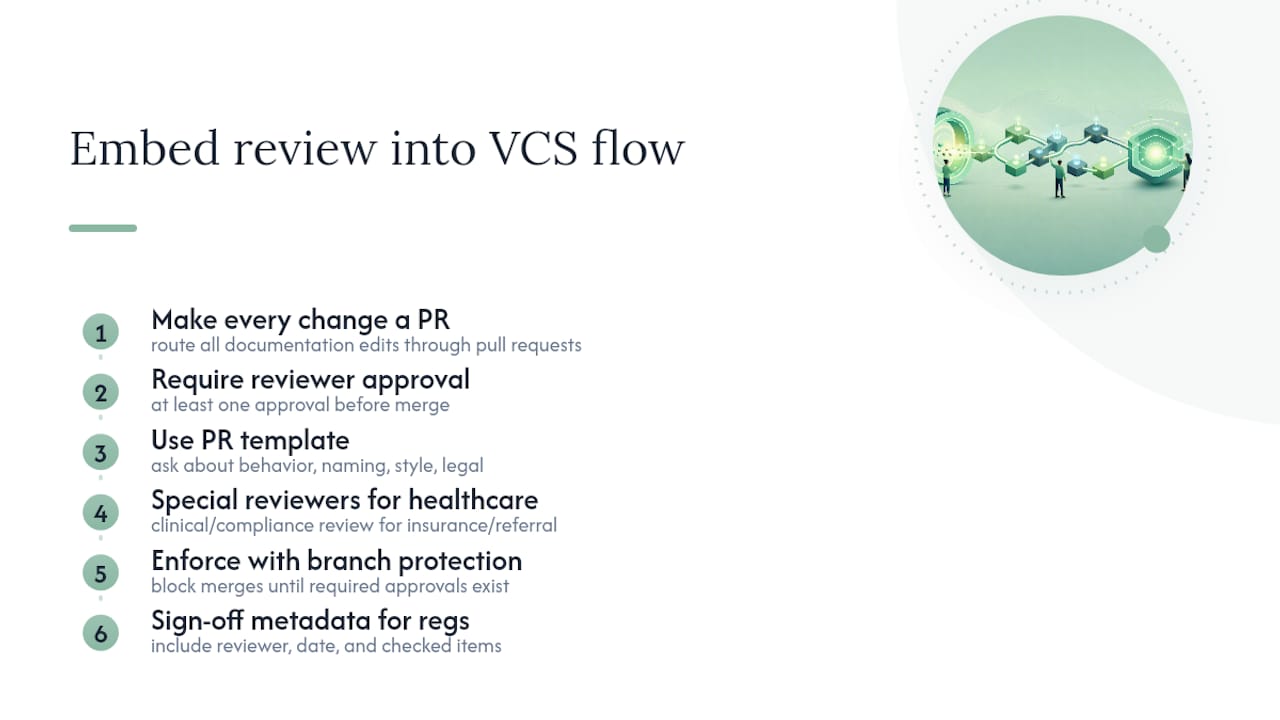
Version control and document review work best as one process, not two separate steps bolted together. Every documentation change should move through a pull request, and every pull request should require at least one reviewer’s approval before it merges into the published branch.
Structure the PR template to ask the reviewer specific questions: does this match current product behavior, does it follow the naming and style conventions, does it need legal or compliance sign-off. For healthcare admissions documentation specifically, a standing rule that any content referencing insurance eligibility or referral procedures gets reviewed by someone on the clinical or compliance side, not just a copy editor, adds a necessary layer without slowing down routine text edits.
Use branch protection rules to enforce this rather than relying on trust. Most Git hosting platforms let you block merges to a protected branch (like main) until a required reviewer approves, which turns “please review this” from a polite request into a technical requirement nobody can skip by accident.
For documents with regulatory weight, add a sign-off field directly in the file’s metadata: reviewer name, approval date, and a note on what was checked. This keeps the audit trail inside the document history itself, rather than scattered across email threads or chat messages that vanish over time. It also means an auditor months later can trace exactly who approved a given version and why, without you having to reconstruct anything from memory.
Turning Commit History Into a Real Changelog
Every Git commit is a small piece of a changelog waiting to be assembled. The discipline that makes this work is writing commit messages that describe what changed and why, not just “updated file” or “fixes.”
A useful pattern: start each commit message with a category tag, docs:, fix:, update:, followed by a short description. docs: clarify insurance verification steps in intake checklist tells a future reader everything they need at a glance. Six months from now, when someone asks why a section changed, that commit message answers the question without anyone having to remember.
From there, generating a changelog is largely mechanical. Many teams script it: pull all commits since the last tag, group them by category, and publish the result alongside the new release. Git tags mark the boundary points, so a changelog entry for v2.3.0 simply lists everything committed since v2.2.0.
For documentation specifically, a changelog serves a second purpose beyond internal tracking: it tells your readers what changed without making them diff two versions themselves. A short “what’s new in this version” note at the top of a document, generated from the same commit history, respects a reader’s time far more than a silent update they might never notice.
Keep the changelog itself under version control too. It’s a document like any other, and it benefits from the same review process before it publishes.
Who Should Have Access to Your Documentation Repository?
Version control systems track changes, but they don’t automatically enforce who’s allowed to make them. Access control is a separate decision, and it matters more once documentation includes anything sensitive, internal policy, compliance material, or content referencing patient or facility-specific processes.
Set repository permissions in tiers: most contributors get write access to open PRs but not to merge directly into the protected branch. A smaller group of maintainers holds merge rights. This structure alone prevents accidental or unreviewed changes from reaching the published version, regardless of good intentions.
Audit trails matter here too. Git’s commit history already records who changed what and when, which satisfies much of the traceability that compliance-sensitive teams need. Combine that with your hosting platform’s access logs (who viewed, cloned, or downloaded the repository) for a fuller picture if your organization operates under audit requirements.
For any documentation touching regulated information, keep the repository private by default, and review third-party integrations, CI tools, AI writing assistants, deployment services, for what access they retain before connecting them. A tool that only needs to read public documentation doesn’t need write access to your entire repository. Scope permissions narrowly, and revisit them when a contributor’s role changes rather than leaving stale access in place indefinitely.
Common Pitfalls Teams Hit When Adopting Version Control
The friction is predictable: a contributor who’s never used Git stares at a merge conflict and freezes. Content gets duplicated across two folders because nobody trusted the single source of truth yet. Builds slow down as versioned docs pile up unchecked.
The fix isn’t more tooling, it’s smaller scope. Start with one repository, add templates before you add rules, and pair a Git-fluent teammate with a nontechnical one for the first few PRs. Automation handles the rest once the habit sticks.
— Harry
Where to Go for Tool-Specific Setup Instructions
For hands-on setup, go straight to the source: Docusaurus’s versioning guide, Read the Docs’s versions documentation, and Antora’s content source versioning methods each walk through configuration step by step. For cloud-based teams, Microsoft’s OneDrive version restore guide covers the nontechnical path.
If your documentation involves patient intake or referral workflows, Smart Admissions’ pricing page outlines Monthly and Annually subscription options for facilities looking to bring more structure to their admissions documentation alongside version control practices, and the 9 documentation best practices for healthcare teams guide pairs well with everything covered here.
Sources
- Content Source Versioning Methods :: Antora Docs
- Versioning | Docusaurus
- Versions | Read the Docs
- Restore a previous version of a file stored in OneDrive
FAQ
Can You Give an Example of Document Version Control?
A team edits a patient intake form in a Git repository. Each change gets a commit message, a pull request review, and a semver-style tag at release. If an error surfaces, the team reverts to the previous tagged version instantly.
What Are the Three Main Types of Version Control?
Local version control (tracking changes on one machine), centralized version control (one central server all users connect to), and distributed version control (each user has a full copy of history, which is how Git works). Git’s distributed model is the dominant choice for docs-as-code workflows today.
What Does ISO 9001 Say About Document Control?
ISO standards require organizations to control documented information: identifying, reviewing, and approving documents before use, and controlling changes so only current, approved versions are available. They don’t mandate a specific tool, but Git-based workflows with PR review satisfy the identification and approval requirements naturally.
Is Google Docs a Version Control System?
Google Docs offers version history, letting you view and restore earlier edits, but it lacks branching, tagging, and merge tools that Git-based systems provide. It works fine for low-change, low-collaboration documents; teams with frequent parallel edits or release requirements outgrow it quickly.